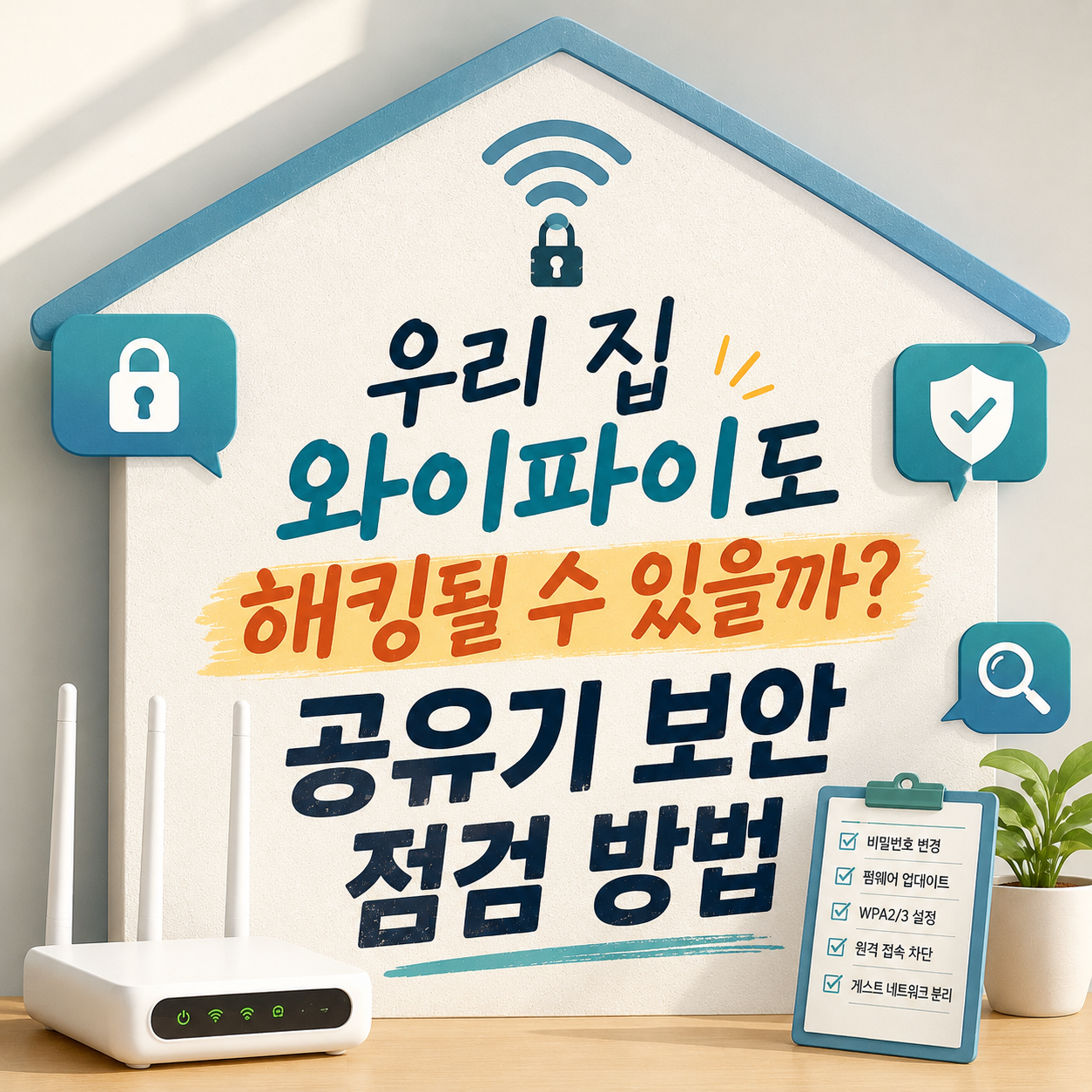
Router security isn't one Wi-Fi password — it's eight steps, from the admin account to the firmware version, done in order.
"Do I just need to reboot the router now and then?" "Isn't a strong Wi-Fi password enough?" Search bars are full of questions like these. In reality, most households set one Wi-Fi password and leave everything else exactly as it shipped from the factory. But the settings that actually open a door in are the ones that go unnoticed: the admin account password, outdated firmware, and a remote-management feature nobody realized was switched on.
Golladream picked out only the items you can log into your router's admin screen and check or fix today, and ordered them accordingly. Items that take a few clicks come first; ones where the right call depends on your product or setup come later. If you're short on time, clearing #1 through #3 today already covers most of the risk — you can work through the rest whenever you have a spare few minutes.
How We Chose This Order
- Can you check or change it right now, logged into the admin screen?
- Does fixing it once keep paying off without repeating the step?
- Does changing it leave everyday use — streaming, remote work — unaffected?
- Is it a feature most home routers have, regardless of brand or model?
Change the Router Admin Password

Update the Router Firmware

Confirm WPA2/WPA3 Encryption

Review the WPS Setting

Separate a Guest Network

Check Remote Management Settings

Review the Connected Devices List

Back Up the Router Configuration

Here's How to Work Through It
You don't have to finish all eight steps in one sitting. Short on time? Handling #1 (change the admin password), #2 (update the firmware), and #3 (confirm your encryption standard) today already cuts most of the risk. If your home has a lot of smart devices, prioritize #5 (guest network); if you find remote management switched on and unused, bump #6 up the list.
Don't treat #7 (the connected devices list) as a one-time check — a monthly glance is worth building into a habit. Keep in mind that menu names and locations vary by manufacturer and firmware version, so always confirm the exact steps against your router's official manual or admin-screen guidance before making changes.
Frequently asked questions
Can the admin password and the Wi-Fi password be the same?
If they match, anyone who learns your Wi-Fi password can also get into your router's settings. Keeping them separate is safer.
How often should I update the router's firmware?
Rather than a fixed schedule, update when the manufacturer posts a security notice and right after a fresh install. Older, unsupported models may not get updates at all anymore.
If I see an unfamiliar device in the connected list, is that a break-in?
Plenty of legitimate devices show up with unfamiliar names — TVs, printers, smart lights. Check whether the entry disappears when you power that device off, and compare the manufacturer info against what you actually own, before jumping to conclusions.
Do I have to turn off WPS?
It's not mandatory, but since WPS connects devices with just a button or PIN, that convenience adds exposure. If your household rarely adds new devices, turning it off is the safer choice.
If I set up a guest network, are my smart-home devices safe?
How well a guest network isolates your main network and other devices varies by product. Don't take the name at face value — check the manufacturer's documentation for the real scope before deciding what to connect to it.
Why bother backing up the router configuration?
If a reset or error wipes your settings, a backup file lets you restore them quickly. Since it can contain access details, store it securely and don't share it outside your household.
Get new lists before anyone else
Once a week — only the new lists worth your time.
No spam · unsubscribe in one click
You may also like

Looking for Drug Prevention Education in Korea? Check Who Runs It First
Match the program to your age group and setting, and verify the operating institution and its official domain before you sign up.

Worried About a Family Member's Drug Use? Connect Before You Confront
If you're worried about a family member's drug use, connecting them to official counseling and treatment comes before confronting them directly.