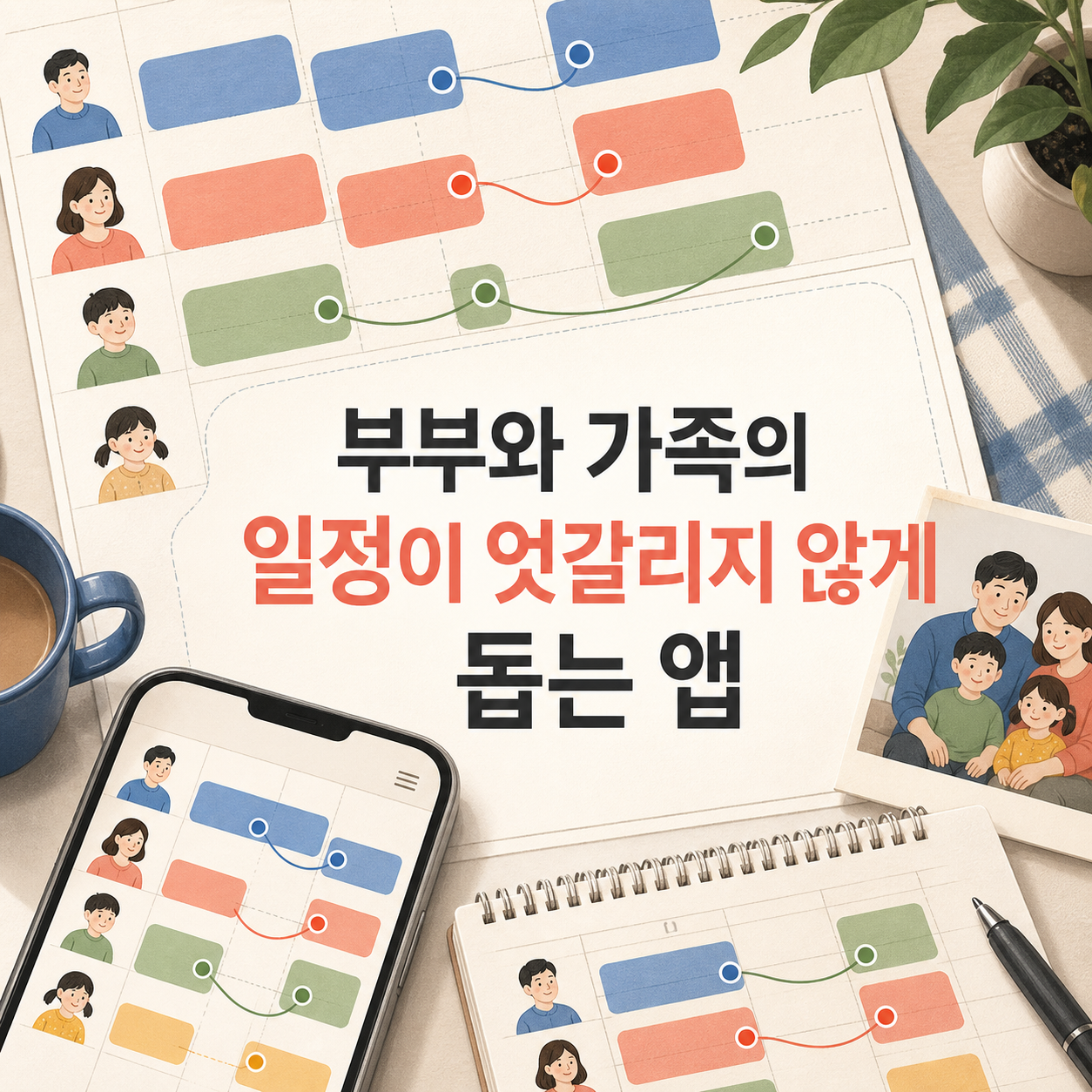
From Google Calendar to Notion, splitting calendars from to-do lists keeps couples and families from turning shared planning into one person's chore.
Most scheduling conflicts between partners aren't a memory problem — they happen because each person keeps their commitments in their own head. Installing a new app doesn't fix that by itself. A calendar handles 'when'; a to-do app handles 'who does what' — understanding that split is what actually lets two people share a tool. This list separates calendar apps from to-do apps and sorts them by what should be shared versus what should stay private.
An app that only one partner actually updates becomes one more chore for that person, not a fix. The more features an app has, the longer setup takes, and the person who did the setup usually ends up maintaining it too. Whether both of you actually log things matters far more than any feature list.
What to look for
- Whether it separates calendar (events) from to-do (tasks)
- Whether sharing scope and permissions can be set precisely
- Whether it plugs naturally into an account you already use (Google, Apple, Microsoft)
Try one core feature for a month using the order below, and check honestly whether both of you are actually using it before expanding.
Google Calendar
TimeTree
Apple Family Sharing Calendar
Outlook Family Calendar
Microsoft To Do
Apple Reminders
Todoist
Google Keep
Notion
Trello
How to get started
If you already have an account with one of the big ecosystems, check that first rather than a new app — No. 1 Google Calendar, No. 3 Apple's Family Sharing calendar, or No. 4 Outlook Family Calendar. If you want scheduling to feel more like conversation, try No. 2 TimeTree; for checklist-heavy needs like chores and groceries, No. 5 Microsoft To Do or No. 6 Apple Reminders; for managing big projects, No. 7 Todoist or No. 10 Trello.
Whichever app you pick, use it for exactly one purpose in month one — a single family events calendar, say — and confirm both partners check it unprompted before expanding scope. The features and settings described here reflect the time of research; service policies and pricing can change, so check each service's own current documentation before signing up.
Frequently asked questions
If we turn on a shared calendar, can my partner see all my events?
No — most services let you keep shared and personal calendars separate, and your partner only sees what you add to the shared one. That said, misconfigured invite permissions can open up more than intended, so check the sharing settings yourself rather than assuming the defaults are right.
Is it fine if only one of us enters events and the other just checks the calendar?
It might feel convenient short-term, but the entry burden tends to pile up on one person, and missing events become a recurring argument. It works better long-term if you agree from the start that each person logs their own commitments and assigned tasks.
Is there information we shouldn't put in a shared family app?
Keep sensitive details like ID numbers, account passwords, or medical records out of shared notes or calendar descriptions. Features that affect privacy, like location sharing or activity logs, shouldn't be turned on by default either — only use them with clear, explicit agreement from everyone involved.
Is the free version enough for most couples?
For most people, the free tier covers calendar sharing and basic to-do management just fine. Apps like Todoist or Notion may need a paid plan for advanced views or large attachments, so it's worth starting free and upgrading only for the specific feature you're missing.
What setup works best for families with kids?
A common pattern is one calendar for pickup, classes, and doctor visits, plus a to-do app for school supplies and chores. If you set up a separate account for a child, check each app's age requirements and privacy policy first.
Get new lists before anyone else
Once a week — only the new lists worth your time.
No spam · unsubscribe in one click
You may also like

Sync Isn't Backup: 10 Real Ways to Protect Your Family Photos
Photo sync and backup aren't the same thing — split family photo sharing, personal cloud storage, and true offline backups across different services so no file disappears when a device is lost or an account is canceled.

Marriage Doesn't Mean Shared Passwords: A Couple's Guide to Digital Security
Keep personal accounts separate, and design emergency access for shared ones before you need it.